I wanted to remove one small daily chore: check in to 1Point3Acres and answer its changing multiple-choice quiz. The check-in is predictable. The quiz is not—it may depend on forum rules, wording, or current facts. That is why this project needs both reliable browser automation and a system that can reason about the answer.
I tried three designs. The simplest let Codex control the browser directly. The method I use now lets Codex make the final decision while a local library performs and verifies the website actions. A third design tries to replace Codex with a local LLM, but it is not reliable enough yet.
Updated September 25, 2026 · Seven-day audit: 6 of 7 supervised submissions correct; local-only answering is still not ready.
%%{init: {'theme':'neutral','themeVariables':{'fontSize':'18px'},'flowchart':{'htmlLabels':true,'nodeSpacing':26,'rankSpacing':30}}}%%
flowchart TB
    G["Daily check-in + quiz"]
    G --> A["1. Codex controls the UI"]
    G --> B["2. Codex + WebContentAgent"]
    G --> C["3. Local app + local LLM"]
    A --> A1["Simple<br/>not dependable unattended"]
    B --> B1["Current<br/>Codex decides; library verifies"]
    C --> C1["Experimental<br/>answer quality not ready"]
Figure 1. The three approaches solve the same task but place browser control and answer selection in different components. This is a comparison, not a network diagram.
我想省掉一件每天都要做的小事:在一亩三分地签到,并回答当天变化的选择题。签到步骤固定;答题却可能涉及论坛规则、文字理解或最新信息。因此,这个项目既需要可靠地操作浏览器,也需要有人或模型判断答案。
我先后尝试了三种设计。最简单的方法是让 Codex 直接操作浏览器。现在使用的方法,是让 Codex 做最终判断,再由本地工具可靠地执行和验证。第三种方法希望完全改用本地大模型,但目前还不够稳定。
更新于 2026 年 9 月 25 日 · 最近七天:监督流程提交 7 题、答对 6 题;尚不能交给本地模型独立答题。
%%{init: {'theme':'neutral','themeVariables':{'fontSize':'18px'},'flowchart':{'htmlLabels':true,'nodeSpacing':26,'rankSpacing':30}}}%%
flowchart TB
    G["Daily check-in + quiz"]
    G --> A["1. Codex controls the UI"]
    G --> B["2. Codex + WebContentAgent"]
    G --> C["3. Local app + local LLM"]
    A --> A1["Simple<br/>not dependable unattended"]
    B --> B1["Current<br/>Codex decides; library verifies"]
    C --> C1["Experimental<br/>answer quality not ready"]
图 1:三种方法完成同一个任务,但把浏览器操作和答案判断交给了不同组件。这是一张方案对比图,不是网络连接图。
1. 让 Codex 直接操作浏览器界面
第一种设计最短:
flowchart LR
    T["Codex scheduled task"] --> U["Browser UI"] --> S["1Point3Acres"]
Codex 直接控制我已经登录的 Chrome:打开网页、读取题目、选择答案并提交。它最大的优点是几乎不需要自己写工具。在我早期的测试中,浏览器操作本身确实可以完成任务。
问题在于无人值守时不够可靠。现在,Codex 使用网站前可能会请求许可;遇到敏感操作时,还可能再次要求确认。这些是有意设置的安全边界,不是程序故障。有人坐在电脑前时很合理,但早上 9 点自动运行时,如果没人批准,任务就可能停在一半。
这并不表示每一次浏览器操作都会弹出确认。网站可能已经获得许可,具体行为也取决于操作类型。真正的问题是:我无法保证它每次都能在无人参与的情况下跑完。如果最后一次点击仍可能等待批准,它就不是完全无人值守的自动化。
文档截图:浏览器确认机制
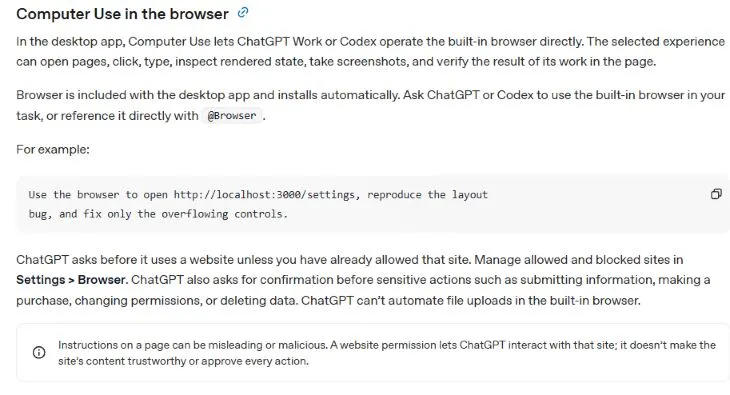
图 2:OpenAI 浏览器文档截图,截于 2026 年 8 月 29 日 21:25,美国山地夏令时(UTC−06:00)。图片按较小尺寸显示,以免原始分辨率不足时变模糊。可查看最新的浏览器文档和定时任务权限说明。
结论: 这种方法适合有人在场的任务,但我已经不再把它作为每日无人值守的方案。
2. 让 Codex 配合本地自动化工具
我现在采用的方法只有一条核心规则:Codex 做决定,WebContentAgent 和 Chrome 扩展负责执行与验证。 Codex 仍然负责最难的答案判断,但不再自己点击网页。
虽然名字里有 Agent,WebContentAgent 在这套流程中并不是另一个负责决策的大模型。它只是一个职责很窄的本地工具,仅提供审核和浏览器操作所需的接口,不是一个可以随意控制电脑的通用工具。安装在日常 Chrome 中的一个小型 Chrome 扩展,会从本地 App 读取命令,复用我已经登录的一亩三分地会话,执行网页操作,再把页面状态交还给 App。
%%{init: {'theme':'neutral','themeVariables':{'fontSize':'18px'},'sequence':{'diagramMarginX':14,'actorMargin':34,'messageMargin':28}}}%%
sequenceDiagram
    participant C as Codex task
    participant A as WebContentAgent App
    participant X as Chrome extension
    participant S as 1Point3Acres
    C->>A: Start or resume unfinished daily work
    X->>A: Poll for work
    A-->>X: Check site state and skip completed steps
    X->>S: Act in signed-in Chrome
    S-->>X: Return question and options
    X-->>A: Save exact text and page state
    C->>A: Read frozen review record
    C->>C: Check every option
    C->>A: Approve one option or skip
    X->>A: Prepare approved choice
    X->>S: Select and verify option
    X->>A: Request one-use submit permit
    A-->>X: Return permit
    X->>S: Submit once
    S-->>X: Show grade
    X-->>A: Save explicit website outcome
图 3:Codex 做最终答题决定;WebContentAgent 协调整次运行;Chrome 扩展在已登录的浏览器中执行并验证网页操作。
一次完整运行
Codex 任务每 6 小时检查一次当天记录。只有签到和答题都已明确完成,才不再运行;尝试过、失败或消费过许可都不算完成。已有运行就继续它,不叠加任务。新运行重新读取网站状态,跳过已完成的步骤,并按原顺序保存题目和全部选项。已判错也意味着当天答题机会已经用掉,不能重答。
Codex 审核这份固定下来的记录,然后批准一个准确选项,或者选择不答。Chrome 扩展先核验批准、选择并确认选项,再领取一次性提交许可。提交后只读取结果,不盲目重发。点击成功、单选框被选中,或者模型返回了合法 JSON,都不算答对;只有网站明确显示的结果才是证据。
Chrome 扩展主动查询 App,不需要常驻等待连接。电脑必须保持唤醒,Chrome 和所需 App 必须运行。正常情况下约每分钟检查一次,但 Chrome 闹钟可能延迟,因此一分钟不是最坏情况的保证。
为什么现在选择它
它不是最自主的设计:Codex 仍然参与答题。这是有意的取舍。普通代码负责时间、状态、重试、原文保存、防止重复提交和结果验证;只有真正需要判断的部分才交给 Codex。
几条简单的保护规则非常重要:
- 审核前,App 必须保存原始题目和全部选项。
- 证据不足时,Codex 可以弃答,而不是猜测。
- 一次批准只生成一次提交许可。
- 不重放旧许可。结果不明时先只读核实;确认尚未提交后,才允许新运行、新审核和新许可。
- 网站结果、Codex 决定和任何模型建议分别保存。
- 私有日志和答题记录只保存在本机。
在一次已经验证的运行中,网站没有立刻显示判题结果。Chrome 扩展继续检查已保存的运行状态,稍后记录了网站明确给出的正确结果,而且没有再次提交。这才是我真正关心的可靠性:不只是点了按钮,而是知道最后发生了什么。
结论: 这是我目前实际使用的方案。它牺牲了一部分自主性,换来了更清楚、可核对的证据链。
3. 用本地大模型实现完全自动化
第三种方法让 Gemma 在本地独立决定答案。目前评估的是 Gemma 4 12B QAT(Q4_0 量化),通过 LM Studio 运行。周围的浏览器自动化已经可以在本机运行;我仍在探索的是模型自主答题:
flowchart LR
    A["Local app"] --> M["Local Gemma model"]
    M --> A
    X["Chrome extension"] <--> A
    X <--> S["1Point3Acres"]
App 负责定时,Chrome 扩展负责网站操作,本地 Gemma 模型负责选答案。Codex 不再参与每日运行。模型只在答题时加载,空闲 5 分钟后卸载,不必整天占用显存。
这个方案很有吸引力:它在本机运行、成本低,而且理论上可以完全无人值守。但它目前还不能取代 Codex。最棘手的问题不在点击,而在证据和判断:
- JSON Schema 约束输出结构和选项范围,但仍出现选项文字不匹配、证据项异常和重复生成;合法格式不等于正确答案。
- 模型自己给出的高置信度,并不可靠地代表答案正确。
- 搜索结果曾把第三方题库和无关的 AI 文字混在一起,并使用了错误的来源标签。
- 一段看似合理的解释仍可能支持错误选项,也可能忽略“以上都对”确实成立。
我已经要求模型返回结构化结果,保存每天真实出现的题目和全部选项,分别记录本地模型与 Codex 的选择,过滤搜索证据,并保存网站最终判定。来源不完整、缺少原始选项的社区题库已经删除。历史题目可以用于测试和审计,但不会自动被当成答案库。
最近七天:到底答对了多少?
下面统计 2026 年 9 月 19–25 日,按 App 审计中的本地日期分组。数据来自真实运行 JSONL 和每日阅读报告,不含模拟回放。七天共 8 次真实启动:7 次有明确判分,另一次在 9 月 23 日中途停止、没有判分,晚间新运行完成。每天最终签到均验证完成;这不等于每次启动都成功。
| 日期 | 题目主题 | Gemma 建议及状态 | Codex 最终选择 | 网站判分 |
|---|---|---|---|---|
| 9/19 | 跨区发帖规则 | 结构失败,无有效建议 | ③ | 正确 |
| 9/20 | 鼓励的发帖方式 | ①,80%,证据不足 | ① | 正确 |
| 9/21 | 论坛用户画像 | ①,引用校验失败,降为 0% | ① | 正确 |
| 9/22 | 添加无关热门话题 | ①,0%,全部证据未知 | ① | 错误 |
| 9/23 | VIP 的正确说法 | ①,重复输出,降为 0% | ① | 正确 |
| 9/24 | VIP 的错误说法 | ①,0%,证据不足 | ② | 正确 |
| 9/25 | 如何有效提问 | ①,90%,证据不足 | ① | 正确 |
监督流程的提交正确率是 6/7(85.7%),不是 Gemma 的正确率。 Gemma 有 6 次留下候选,其中 5 次与 Codex 一致(83.3%);这五次提交里四对一错,而且包含被降级的占位建议。另一次 Codex 改选后答对,网站没有测试 Gemma 的候选。不能把一致率当准确率,也不能从这些记录算出可信的 local-only 正确率。
更直接的可靠性指标是:七道题中,0/7 得到通过现有证据门槛的本地建议——一次结构失败,其余六次均为 evidence_sufficient=false,其中四次最终置信度为 0%。这说明当前模型加检索、提示词和验证器的组合无法独立完成这批题,不说明所有本地模型都不行。严格门槛也可能拒绝方向正确的答案;安全拒绝率与答题准确率是两回事。
哪些地方仍不可靠?
三个问题需要分开:输出能否使用、证据是否支持选项、选项是否正确。 9 月 19 日选项文字和证据项不合法;9 月 23 日短理由重复生成。格式约束和校验可以拦截这些输出,却没有修复模型的判断能力。
9 月 25 日更值得注意:Gemma 给出正确候选和 90% 置信度,却把“问题太笼统、缺少独立查找能力”的回复当成“会得到很多错误回答”的证据。引用确实存在,不代表它证明了那个结论。自报置信度不是经过校准的答对概率,Google 摘要也不能代替题目指定原帖的正文。
9 月 22 日则是 Codex 审核错误:在缺乏精确规则依据时,把常识推断拼成“以上都正确”,网站判错。用户后来确认正确项为④;这条补充标为用户确认,不冒充网站公布的答案。更强的审核模型同样需要逐项核验,尤其不能猜数字上限或组合项。
补知识有帮助,但不足以宣布修复。9 月 24 日补充有日期和来源的 VIP 规则后,一次零提交回放让 Gemma 从①改为②,却仍出现重复输出。它是改进线索,不是新增的一次真实答对。这七天模型、资料和校验也在变化,并非固定配置的随机对照测试。
我的判断是:目前可以把 Gemma 当作待核验的顾问,不能当作无人监督的最终答题者。 下一轮应冻结模型、提示词和检索配置,用后续未见题目同时统计可用输出率、证据通过率、弃答率,以及有可靠标签的建议正确率;把网站判分和用户确认标签分开。不要通过降低门槛换取“更高完成率”。
结论: 我现在使用第二种方法。第一种适合我在场时使用;第三种仍是实验,只有真实数据证明它可靠之后,才会考虑让它独立答题。
参考:故障、修复与验证边界
以下是项目故障记录的摘要,不是所有问题都已解决。单元测试证明已知条件下的行为;本地浏览器测试证明输入路径;只有真实网站判分证明当天答题结果。
| 故障或误判 | 处理方式 | 验证与剩余边界 |
|---|---|---|
| 模型还在运算,Chrome 后台 worker 已被回收,界面一直显示运行中 | 保存运行、标签页和题目状态;每次唤醒只做短查询,下次继续 | 增加跨 worker 回归;日志用 [1/8]–[8/8] 区分推理、审核和轮询等待 |
| 标签页已激活,却没有产生按钮点击 | 短时焦点模拟、精确 DOM 目标和可信输入事件检查;修正 Enter 激活路径并清理监听器 | 已安装扩展在无副作用 localhost 页面验证点击次数;不能拿本地成功替代论坛结果 |
| 选择答案之前就消费许可,失败后又被“当天已尝试”挡住 | 分离准备与许可;选中核验后才领取许可;按两项真实完成状态去重 | 旧许可不能复用;明确未答才新运行,未知结果先只读核实,已判分绝不重答 |
| 提交后网站延迟判分,被当成失败 | 保存等待结果阶段,后续只读同一标签页 | 有真实延迟后判对记录;超时仍记未知,不盲目重发 |
| 模型改写选项、遗漏证据或重复生成 | 精确选项 Schema、引用和覆盖校验、重复检测;异常建议降级 | 9/19 回放通过不代表彻底解决;9/23 和 9/24 回放仍有重复输出 |
| 组合项靠猜测补足,最终答错 | 要求每个子项及数字限定均有依据,无法确认则弃答 | 9/22 是已知审核失败;规则更新不是准确率提升的实验证明 |
| App 中途退出,旧文本日志含空字节 | 保留原始证据,核对独立 JSONL,再从网站状态恢复 | 9/23 晚间完成;退出及旧日志损坏原因仍未知,不能标为已修复 |
统计来源是本机 9/19–9/25 的原始审计与中文日报;原始题目、全部选项、双方决定、失败启动及回放分别保留,不公开账号日志或访问凭据。技术背景可参阅 Chrome 后台 worker 生命周期、Chrome alarms、LM Studio 结构化输出;这些文档说明机制,不证明本项目的答题效果。
1. Direct Codex UI Control
The first design was also the shortest:
flowchart LR
    T["Codex scheduled task"] --> U["Browser UI"] --> S["1Point3Acres"]
Codex directly controlled my signed-in Chrome: it opened the page, read the quiz, selected an option, and submitted it. This was attractive because there was almost no custom code. In my earlier tests, the browser interaction itself could complete the task.
The problem is unattended reliability. Current Codex browser controls may ask before using a website, and sensitive actions can require another confirmation. These are intentional safety boundaries, not application bugs. They are reasonable when a person is present, but a 9:00 a.m. task can stop halfway if nobody is there to approve it.
This does not mean every browser action always triggers a prompt. Permissions may already exist, and behavior can depend on the action. The issue is that I cannot treat approval-free completion as a guarantee. An automation that may pause at the final click is not fully unattended.
Documentation screenshot: browser confirmations
Figure 2. OpenAI’s browser documentation, captured August 29, 2026 at 21:25 MDT (UTC−06:00). The smaller display keeps the text sharp at its source resolution. See the current browser documentation and Scheduled Task permission model.
Result: this is still useful for an attended task, but I no longer use it as the daily unattended path.
2. Codex with a Local Automation Library
The method I use now has one simple rule: Codex decides; WebContentAgent and the Chrome extension execute and verify. It keeps Codex responsible for the difficult decision but removes browser clicking from Codex itself.
Despite its name, WebContentAgent is not another LLM making decisions in this workflow. Here it is a narrow local library that exposes only the review and browser operations this task needs; it is not a general remote-control tool. A small Chrome extension in my normal Chrome profile reads commands from the local app, uses my existing signed-in session, performs the website actions, and reports the page state back.
%%{init: {'theme':'neutral','themeVariables':{'fontSize':'18px'},'sequence':{'diagramMarginX':14,'actorMargin':34,'messageMargin':28}}}%%
sequenceDiagram
    participant C as Codex task
    participant A as WebContentAgent app
    participant X as Chrome extension
    participant S as 1Point3Acres
    C->>A: Start or resume unfinished daily work
    X->>A: Poll for work
    A-->>X: Check site state and skip completed steps
    X->>S: Act in signed-in Chrome
    S-->>X: Return question and options
    X-->>A: Save exact text and page state
    C->>A: Read frozen review record
    C->>C: Check every option
    C->>A: Approve one option or skip
    X->>A: Prepare approved choice
    X->>S: Select and verify option
    X->>A: Request one-use submit permit
    A-->>X: Return permit
    X->>S: Submit once
    S-->>X: Show grade
    X-->>A: Save explicit website outcome
Figure 3. Codex makes the final quiz decision. WebContentAgent coordinates the run, and the Chrome extension performs and verifies website actions in the signed-in browser.
What happens during one run
Every six hours, Codex checks whether both check-in and the quiz are explicitly complete. An attempt, failure, or consumed permit is not completion. It continues an active run instead of overlapping work. A fresh run rereads the website, skips each completed step, and preserves the exact question and ordered options. An incorrect grade still consumes that day’s quiz attempt; it must not be answered again.
Codex reviews that frozen record and approves one exact option or abstains. The Chrome extension validates approval, selects and verifies the option, and only then claims a one-use submission permit. After submitting, it reads the result without blindly repeating the request. A click, selected radio button, or valid JSON response does not mean the answer was correct; the website’s explicit grade is the evidence.
The Chrome extension polls the app instead of keeping a permanent connection open. The PC must be awake, with Chrome and the required apps running. Checks normally occur about once a minute, but Chrome alarms can be delayed; one minute is not a worst-case guarantee.
Why this is the current choice
This design is not the most autonomous one: Codex remains in the critical path for the quiz decision. That is deliberate. Ordinary code handles time, state, retries, exact text capture, duplicate prevention, and result verification. Codex is used only where judgment is needed.
The safeguards are small but important:
- The app records the exact question and all options before review.
- Codex can skip rather than guess.
- One approval creates one submission permit.
- Old permits are never replayed. An uncertain result is inspected read-only; a fresh run, review, and permit are allowed only after confirming no submission occurred.
- The website outcome is stored separately from both Codex’s decision and any model suggestion.
- Private logs and quiz records stay local.
On a verified run, the website initially delayed the grade. The Chrome extension kept checking the saved run state and later recorded the explicit correct result without submitting a second time. That is the behavior I care about: not merely clicking, but knowing what happened.
Result: this supervised design is the method I use today. It trades some autonomy for a much clearer chain of evidence.
3. Fully Local LLM Automation
The third design asks Gemma to make the quiz decision locally. The evaluated model is Gemma 4 12B QAT (Q4_0 quantization), served by LM Studio. The surrounding browser workflow already runs locally; autonomous answering is the part I am still exploring:
flowchart LR
    A["Local app"] --> M["Local Gemma model"]
    M --> A
    X["Chrome extension"] <--> A
    X <--> S["1Point3Acres"]
The app would schedule the run, the Chrome extension would handle the site, and a local Gemma model would choose the quiz answer. Codex would not participate in the daily path. The model can be loaded only for the quiz and unloaded after five idle minutes, which avoids keeping it in GPU memory all day.
This is appealing: it is local, inexpensive to run, and could be fully unattended. It is also not ready. The difficult failures were not browser clicks; they were failures of evidence and judgment:
- JSON Schema constrains structure and option ranges, but mismatched option text, malformed evidence, and repetitive generation still occurred. Valid formatting does not establish correctness.
- High self-reported confidence did not reliably mean the answer was correct.
- Search results once mixed third-party answer banks with unrelated AI text and gave the evidence a misleading source label.
- A plausible explanation could still support the wrong option—or overlook that “all of the above” was valid.
I have improved the pipeline by requiring structured output, storing every real question and option, separating local-model and Codex decisions, filtering search evidence, and saving the website’s grade. I removed imported community answer banks because they did not preserve all original options. Saved questions are test cases and audit evidence, not an automatic answer key.
Seven recent days: what actually worked?
This audit covers September 19–25, 2026, grouped by the local dates recorded by the app. It uses real-run JSONL records and daily reports, excluding simulations. There were eight real starts: seven explicitly graded submissions and one interrupted September 23 run with no grade, followed by a completed evening run. Check-in was eventually verified on all seven days; that does not mean every start succeeded.
| Date | Quiz topic | Gemma suggestion and status | Codex final choice | Website grade |
|---|---|---|---|---|
| Sep 19 | Posting in the wrong section | Invalid structure; no usable suggestion | 3 | Correct |
| Sep 20 | Encouraged posting practices | 1; 80%; insufficient evidence | 1 | Correct |
| Sep 21 | Forum user demographics | 1; failed quote validation; downgraded to 0% | 1 | Correct |
| Sep 22 | Adding unrelated popular tags | 1; 0%; all evidence unknown | 1 | Incorrect |
| Sep 23 | Correct statements about VIP | 1; repetitive output; downgraded to 0% | 1 | Correct |
| Sep 24 | Incorrect statement about VIP | 1; 0%; insufficient evidence | 2 | Correct |
| Sep 25 | Asking useful questions | 1; 90%; insufficient evidence | 1 | Correct |
The supervised workflow scored 6/7 (85.7%), not Gemma. Six runs retained a Gemma candidate; five matched Codex (83.3%). Those five submissions produced four correct grades and one incorrect grade, and included downgraded placeholders. On the remaining run, Codex changed the choice and answered correctly; the website never tested Gemma’s candidate. Agreement is not accuracy, and these records do not establish a trustworthy local-only accuracy rate.
A more direct readiness measure is 0/7 local suggestions passing the current evidence gate: one structural failure and six records with evidence_sufficient=false, four of them ending at zero confidence. This model, retrieval, prompt, and validator combination could not independently finish this batch. That is not a claim about all local models. Strict gates can also reject a correct candidate; safe rejection and answer accuracy are different measures.
What remains unreliable?
Three questions need separate answers: Is the output usable? Does its evidence support the option? Is the option correct? September 19 produced invalid option text and evidence entries; September 23 repeated text in the short explanation. Format constraints and validators can reject these outputs without fixing the underlying judgment.
September 25 is more revealing. Gemma gave the correct candidate and 90% confidence, but treated a reply about vague questions and poor independent research as evidence that vague questions receive many wrong answers. A quotation can exist without proving the claim. Self-reported confidence is not a calibrated probability, and Google snippets cannot replace the original post named by a question.
September 22 was a Codex review error. It assembled common-sense guesses into “all of the above” without evidence for a precise forum rule; the website marked it wrong. The user later confirmed option 4, recorded separately as user confirmation—not a website-disclosed answer. A stronger reviewer still needs to verify each option, especially numerical limits and aggregate choices.
Better notes can help without solving the whole problem. After dated, sourced VIP notes were expanded on September 24, one zero-submission replay changed Gemma’s candidate from 1 to 2, but repetitive generation remained. That is a diagnostic lead, not another live success. Model settings, notes, and validation also evolved during this week; this was not a fixed-configuration randomized comparison.
My conclusion: Gemma is currently an adviser to check, not an unattended final decision-maker. The next evaluation should freeze the model, prompt, and retrieval setup, then measure usable-output rate, evidence-gate pass rate, abstentions, and suggestion accuracy on reliably labeled future questions. Website grades and user-confirmed labels should remain distinct. Lowering safeguards merely to raise completion would hide the problem.
Result: I use method 2 today. Method 1 remains suitable when I am present, and method 3 remains an experiment until its accuracy is supported by evidence rather than confidence.
Reference: bugs, fixes, and verification limits
This is a condensed engineering record, not a claim that every issue is solved. Unit tests verify known conditions; local browser tests verify the input path; only the live website grade establishes that day’s quiz result.
| Failure or mistaken assumption | Change | Verification and remaining limit |
|---|---|---|
| Chrome’s background worker disappeared during model inference, leaving the app running indefinitely | Persist run, tab, and question state; make one short query per wake and resume later | Cross-worker regressions; [1/8]–[8/8] logs distinguish inference, review, and polling waits |
| An active tab produced no button click | Short-lived focus emulation, exact DOM targets, trusted-event checks; corrected Enter activation and listener cleanup | Installed extension tested on inert localhost pages with click counts; local success is not a forum result |
| Selection failure consumed a permit, then “already attempted today” blocked recovery | Separate preparation from authorization; claim the permit after verified selection; deduplicate by actual completion | Never reuse old permits; only restart an explicitly unanswered task, observe unknown outcomes first, and never repeat a graded answer |
| A delayed website grade was treated as failure | Persist an awaiting-result phase and subsequently read the same tab | A live delayed correct grade was observed; a timeout remains unknown and does not authorize resubmission |
| Rewritten options, missing evidence, and repetitive model output | Exact-option schema, quote/coverage checks, repetition detection, and safe downgrade | A passing Sep 19 replay did not solve generation; repetition recurred on Sep 23 and in the Sep 24 replay |
| Unsupported guesses were combined into “all of the above” | Require evidence for every child claim and numerical qualifier; abstain when unresolved | Sep 22 remains a known review failure; updated instructions are not measured accuracy gains |
| App exited mid-run; old text log contained null bytes | Preserve evidence, inspect the independent JSONL audit, and recover from website state | Sep 23 evening completed; exit and old-log corruption causes remain unknown, not fixed |
The statistics come from private September 19–25 audits and daily reports. Full questions, ordered options, both decisions, failed starts, and replays remain separately recorded; account logs and access credentials are not published. For mechanism background, see Chrome service-worker lifecycle, Chrome alarms, and LM Studio structured output. Those documents explain mechanisms, not this project’s answer quality.
Comments